


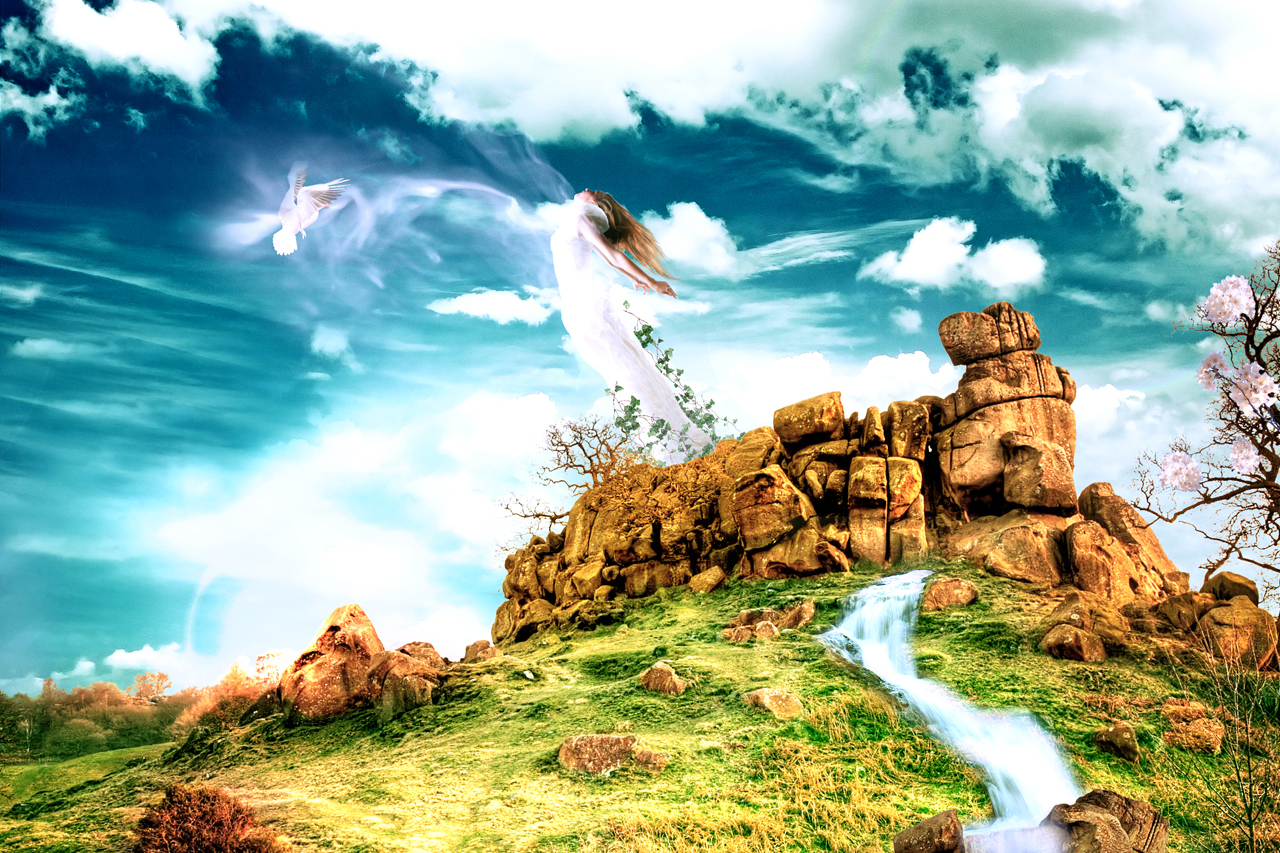
I worked on this illustration especially for you with Ciursa Ionut, he is the founder ofPSDBURN where he writes Photoshop tutorials. He started working in Photoshop many years ago when he began to utilize this great tool all the time. In this tutorial, you are going to create a story scene using photo manipulation and a lot of color adjustments.
Final Image Preview
Before you get started, let's take a look at the image you'll be creating. Want access to the full PSD files and downloadable copies of every tutorial, including this one? JoinPsd Plus for just $19/month. You can view the final image preview below or view alarger version here.
Also, I would like to take this opportunity to thank the photographers for giving me permission to use their images. These are the images I have used to create this illustration: Land, Sky, Bird, Model by Jessica, Cascade by Steph, Flowers, Vines by Erica and Abstract Glow by Andreea's and Dianora's stock.
Step 1
First of all, download the Land image and open it in Photoshop. Then hold down the Alt key and double-click on the "background" layer to unlock it.

Step 2
Now you are going to delete the sky and later you will replace it with a more beautiful one. In order to select the sky, go to the Channels palette and identify the channel with the highest contrast between the sky and the rest of the image. In our case, select the blue channel and duplicate it (to duplicate a channel, drag it over the Create New Channel button).

Step 3
You need a higher contrast between the sky and the rest of the image. To obtain the contrast needed use the Curves. Go to Image > Adjustments > Curves (Command + M) and drag the two controllers further together. Take a look at the following image for reference.

Step 4
Note that the sky has to be completely white and the land has to be black. Now the land has some white areas. You don't want that, so grab the Pen Tool (P) and use it to select the land. With the Pen Tool still selected, right-click on the image, chose Make Selection and click OK. Now the path has been transformed into a selection. Grab the Paint Bucket Tool (G) and fill this selection with black. Then go to Select > Deselect.

Step 5
Use the Pen Tool (P) to select the trees from the left side of the image. Then right-click on the image, select "Make Selection" and click OK. Use the Paint Bucket Tool (B) to fill the selection with white. Then go to Select > Deselect (Command + D).

Step 6
There are some gray areas on the sky, but you can fix this easily. Select a white hard brush (B) to paint over those gray areas with white.

Step 7
In the Channels palette Command-click on the "Blue copy" channel's thumbnail. This will select all the white pixels. Then click on the RGB channel, go back to the Layers palette and hit the Delete key to delete the sky. Press Command + D to deselect and then name this layer "background."

Step 8
The trees from the left side of the image look ugly right now (at least in my case). To fix that go to Layer > Layer Mask > Reveal All, select a black grunge brush with the opacity set to 80% and mask the edge of those trees. Take a look at the next image for reference.
Note: you can create a new layer (Command + Shift + N), fill it with white and put it beneath the background layer to help you mask those trees. When you're done you can delete the white layer.

Step 9
Select the Pen Tool (P) and use it to delete the rock selected in the following image. That is the place where you need to place the model.
Note: Make sure that you are working on the layer and not on the mask.

Step 10
Select the Move Tool (V) and move the "background" layer down about 200 pixels.

Step 11
Right-click on the "background" layer and select Convert to Smart Object
Note: If you need to make some changes to this layer, double-click on it's thumbnail. A new document will appear and you will be able to edit the "background" layer. Then save (Command + S) the document, close it and you will see that the changes have been applied to the smart object.

Step 12
Now it's time to add some adjustments to the "background" layer to make it more vivid. You will find each of these adjustment layers in the Layer > New Adjustment Layer menu or in the Adjustments palette (Window > Adjustments). Now follow these steps exactly:
a. Create a new Brightness/Contrast layer.

b. Apply a Photo Filter. The color that I have used is #9b1dea

c. Create a Color Balance adjustment layer. After you add the settings for this adjustment layer, fill it's mask with black using the Paint Bucket Tool (G), select a white soft brush with the diameter of 100px and paint over the grass with white. Take a look at the image below for reference.

d. Create another Color Balance adjustment layer for the rocks. After you enter the settings from the next image, use a black soft brush to paint over the grass. This way the adjustment layer will take effect only on the rocks.

e. The grass from the bottom-right corner of the image is too orange. So let's change that color by adding a new Color Balance adjustment layer. Use the settings from the following image, fill the mask with black using the Paint Bucket Tool (G), and paint with a white soft brush (B) over the orange grass.

f. This is the last Color Balance adjustment layer for this step. Use it to make some of those rocks and the bush from the bottom-left corner more yellow.

Step 13
Hold down the Command key and click on each adjustment layer to select them, then use the shortcut Command + G to group them all. Now Command-click on the background layer thumbnail to select it's pixels. Make sure that you have the group selected and then go to Layer > Layer Mask > Reveal Selection. Name this group "adjustments."

Step 14
Open the sky image and use the Rectangular Marquee Tool (M) to select the sky. Then use the Move Tool (V) to move it in your first document. You see that the sky is not big enough for our document. Use the Clone Stamp Tool (S) and the Healing Brush Tool (J) to make it bigger. Then name this layer "sky" and convert it to a smart object (right-click on the layer and select Convert to Smart Object). Note that this layer has to be beneath the "background" layer.

Step 15
Now you will add some adjustments to the sky. Go to Layer > New Adjustment Layer > Color Balance, check the Use Previous Layer to Create Clipping Mask option and use the following settings.

Step 16
Go to Layer > New Adjustment Layer > Brightness/Contrast, check the Use Previous Layer to Create Clipping Mask option and use 15 for the brightness and 28 for the contrast. Then select the "sky" layer and the two adjustment layers and group them (Command + G). Name the group "sky."

Step 17
Create a new layer (Command + Shift + N) above the background layer and fill it with black using the Paint Bucket Tool (G). Right-click on this layer and select Convert to Smart Object. Then go to Filter > Render > Lens Flare and use the settings from the following image. Change the blend mode for this layer to Color Dodge, the Opacity to 80% and name it "lens flare." You can use a mask if you want to mask some parts of this layer.

Step 18
Now you need to add the model. It might take you some time to cut the woman from the image below. You can download this image created by me to use for this tutorial. The already cut out "model.png" image is available in your "source" folder for Psd Plusmembers. For those without Plus memberships, cut the woman out of the image using the Pen Tool (P). Don't worry about the hair, as we'll recreate it later on.

Step 19
Now let's make the woman's hair longer. Open the "model.png" file in Photoshop, which you have downloaded in the previous step.
a. Go to Filter > Liquify and use the Forward Warp Tool (W) with the size set to 30, the density at 100 and the pressure at 100 to make the woman's hair longer.

b. Select the Smudge Tool (R) and use a brush with a diameter of 35px and a strength of 55% to make the hair smoother.

c. Use again the Smudge Tool (R), but this time use a smaller brush with a diameter of 4px and a strength of 85% to add more detail to the hair.

d. Select the Dodge Tool (O) and use the settings from the next image to add some light to the hair. Then use the Burn Tool (O) to make some parts of the hair darker. Note: you can switch quickly between these two tools by holding down the Alt key.

e. Use the Dodge Tool (O) and the Burn Tool (O) again, but this time use a brush with the diameter of 3px. Leave the rest of the settings as they are and try to make the hair look more realistic using these two tools. Take a look at the following image for reference.

Step 20
Use the Move Tool (V) to move the model in your document and convert this layer to a smart object. Go to Edit > Free Transform (Command + T) and scale this layer down. Then go to Edit > Flip Horizontal and use the Move Tool (V) to put the model where you want.
Note: This layer has to be directly beneath the "background" layer.

Step 21
Add two adjustment layers to the "model" layer. First go to Layer > New Adjustment Layer > Brightness/Contrast and use the settings from the next image. Then go to Layer > New Adjustment Layer > Color Balance and use the settings from the next image.
Note: When you create these adjustment layers, check the option Use Previous Layer to Create Clipping Mask. Then group the "model" layer and the two adjustment layers. Name the group "model."

Step 22
Now we're going to add some vines. Open the image in Photoshop and move it into your document using the Move Tool (V). Then covert this layer to a smart object, go to Edit > Free Transform to scale it down and then go to Filter > Sharpen > Sharpen. Duplicate this layer a few times and put the vines above and below the model (to duplicate a layer you can use the shortcut Command + J or you could select the Move Tool (V), hold down the Alt key and drag the layer). I organized my layers using two groups, one above the "model" and the other one below.

Step 23
Select the bird image and extract the pigeon using the Pen Tool (P) and move it into your document with the Move Tool (V). Then go to Layer > Layer Mask > Reveal All. Select a black soft brush (B) with the diameter of 45px and the Opacity 25% and use this brush to make the bird's left wing transparent just a little.

Step 24
Go to Layer > New Adjustment Layer > Brightness/Contrast and use the settings from the following image. Then group (Command + G) the "bird" layer and the adjustment layer together.

Step 25
Download the brush set, go to Edit > Preset Manager and load the brushes. Then create a new layer, select the Brush Tool (B), set the foreground color to white and use one of those brushes like I did. In the following imagine it looks like the woman is giving her soul to the bird. That is the idea of this brush. Then change the name of this layer to "smoke," and put it inside a group. Put the smoke above the bird, create a layer mask and use a black soft brush to mask some parts of the layer. Let the smoke be only above the bird's left wing. Take a look at the following image for reference.

Step 26
Create a new layer beneath the "background" layer and use again the brushes, which you have downloaded in the previous step to create some kind of mist. Then put these layers inside a group and name the group "smoke 2." Also, create a layer mask again and use a black soft brush to mask some parts of the smoke.

Step 27
Now we're going to put some flowers in the tree on the right side of the image. Cut some Flowers out with the Pen Tool (P) and use the Move Tool (V) to move them into your document. Arrange the flowers the way you want, go to Edit > Free Transform, then scale and rotate them as you wish.

Step 28
Two of my flowers are a little too blue because of the shadow. If you are in the same situation you can fix this with a curves adjustment layer. Simply select the layer with those flowers, go to Layer > New Adjustment Layer > Curves, check the Use Previous Layer to Create Clipping Mask option and use the settings from the next image.

Step 29
Add the cascade. Download the image, open it in Photoshop and move it into your document using the Move Tool (V). Then go to Layer > Layer Mask > Reveal All, select a black soft brush and mask some parts of this layer. We need only the water. Take a look at the next image for reference.

Step 30
Now you are going to add some adjustments to the "cascade" layer. First go to Layer > New Adjustment Layer > Curves and use the settings from the next image. Then go to Layer > New Adjustment Layer > Color Balance and use the settings from the following image. Group the "cascade" layer and the two adjustment layers and name the new group "cascade."

Step 31
Select the "background" layer and cut some rocks out of it using the Pen Tool (P). Put all these rocks layers above all the other ones, select and convert them into a smart object. Name the smart object "rocks."

Step 32
Go to Layer > New Adjustment Layer > Color Balance, check the Use Previous Layer to Create Clipping Mask option and use the settings from the next image.

Step 33
Select the "cascade" layer, select the Lasso Tool (L), set the Feather to 10px and select a part of the cascade. Then go to Edit > Copy, create a new layer above all the other ones and go to Edit > Paste.

Step 34
Set the Opacity for the layer, which you have created in the previous step to 30%. Then duplicate that layer about 10 times and use the Move Tool (V) to arrange the layers. Then group the layers and name the group "water above the rocks." Take a look at the following image for reference.

Step 35
Now all we have to do is add a couple of adjustments. First, select the "sky" layer and go to Filter > Noise > Reduce Noise. Use the settings from the next image. Then go to Filter > Sharpen > Sharpen.

Step 36
Go to Layer > New Adjustment Layer > Channel Mixer, put this layer above all the other ones and use the settings from the image below.

Conclusion
Hope you learned some new techniques and had fun while doing so. You can view the final image below or view a larger version here.


